> ## Documentation Index
> Fetch the complete documentation index at: https://docs.embedder.com/llms.txt
> Use this file to discover all available pages before exploring further.
# GDB
> Ask Embedder to drive GDB over J-Link or OpenOCD to set breakpoints, inspect registers, and snapshot a running target
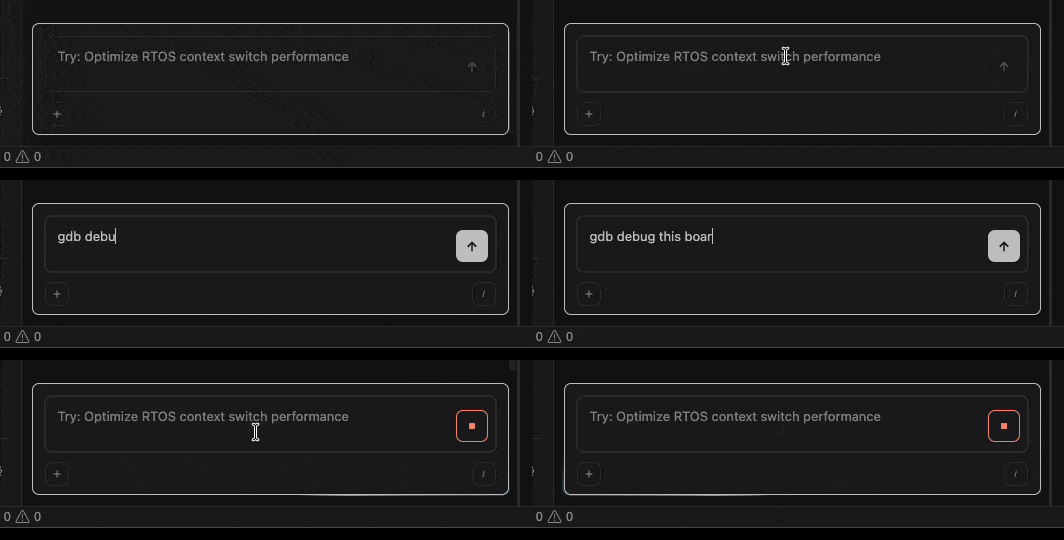
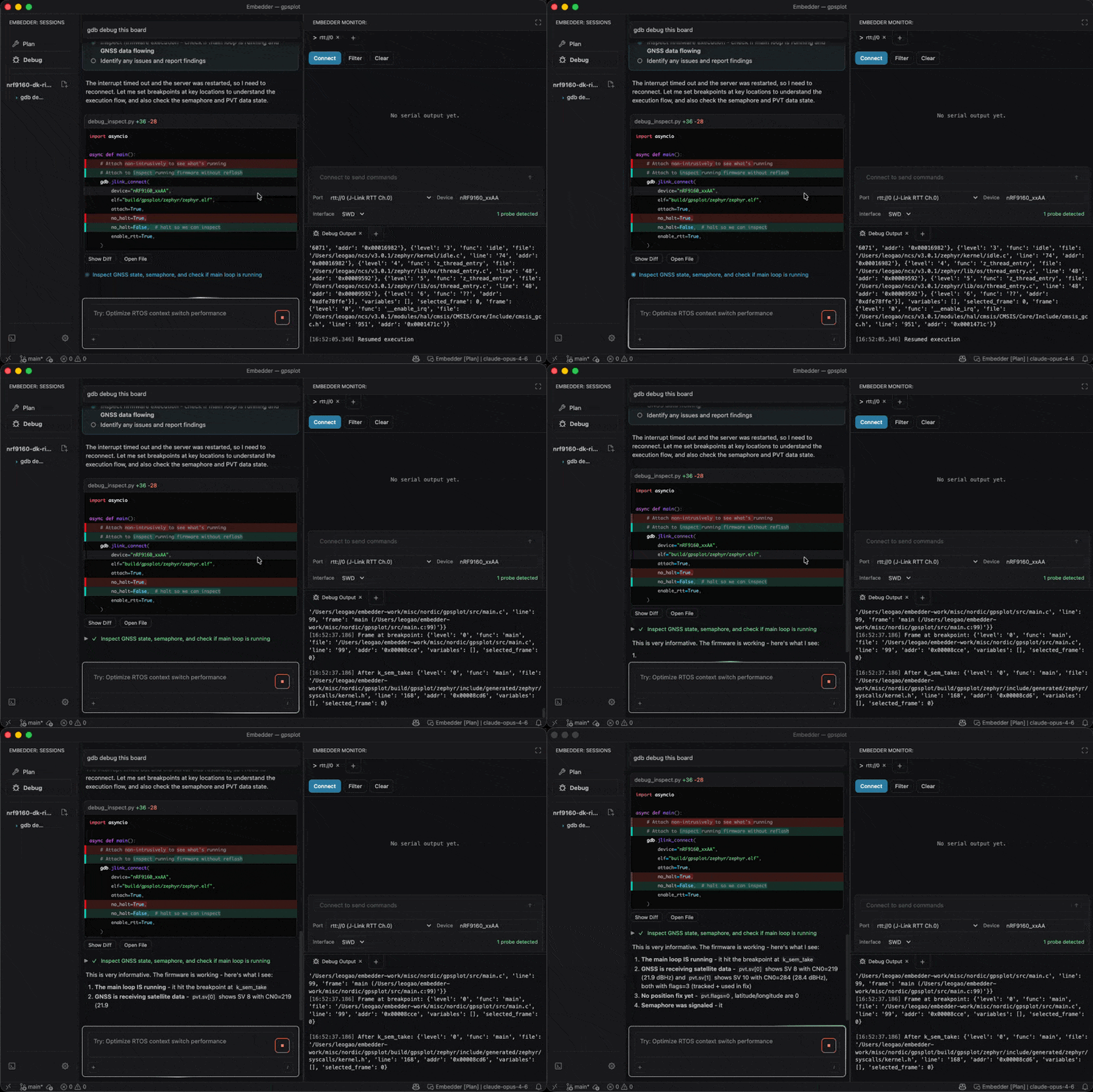
In debug mode, Embedder can drive GDB on your behalf to set breakpoints, inspect registers, walk an RTOS task list, or snapshot a live target. You don't need to write `.gdbinit` files or pick a backend — describe the symptom and the agent picks the right approach.
## Prerequisites
Run `/debug` or click the Debug button. GDB tools are unavailable in act and plan modes.
Embedder supports J-Link (Segger) and OpenOCD (ST-Link, CMSIS-DAP, DAPLink, NXP LPC-Link2 / MCU-Link).
Add this line to your project's `EMBEDDER.md`:
```md EMBEDDER.md theme={"system"}
Debug Interface = jlink
```
Valid values: `jlink`, `st-link`, `cmsis-dap`, `serial`. If missing, Embedder uses whichever probe it detects first.
Embedder needs an ELF file. Make sure your build is up to date — most prompts implicitly assume `build/firmware.elf` (or whatever path your `EMBEDDER.md` `build_command` produces).
On first use, Embedder downloads a managed `arm-none-eabi-gdb-py3` toolchain to `~/.embedder/tools/gdb/`. If `hardware_status` reports `managedGdb.state` as `installing`, wait for it to finish before prompting for GDB.
## Example prompts
**The device hangs and you don't know where:**
```txt embedder theme={"system"}
> the device isn't logging anything — use gdb to figure out where it's hanging
```
The agent attaches non-intrusively, reads the program counter, walks the call stack, and tells you which function it stopped in.
 **Inspect a specific function:**
```txt embedder theme={"system"}
> set a breakpoint at uart_init, run, and dump the registers when it hits
```
**Diagnose a hard fault:**
```txt embedder theme={"system"}
> the chip is hard-faulting on boot — read CFSR, HFSR, and the stacked PC
```
The agent reads the System Control Block fault registers and decodes which fault fired (UsageFault, BusFault, etc.) plus the offending instruction's address.
**Walk an RTOS task list:**
```txt embedder theme={"system"}
> list all FreeRTOS tasks and show me which one is blocked
```
Works for FreeRTOS and Zephyr — the agent surfaces task names and the function each one is currently in.
**Snapshot a running target without resetting it:**
```txt embedder theme={"system"}
> attach to the chip without resetting it, read g_uptime_ms and g_last_fault_code
```
This is the "non-intrusive attach" pattern — useful for inspecting a long-running device, motor state mid-run, or fault registers after a hang. The chip keeps running.
**Read a memory-mapped peripheral register:**
```txt embedder theme={"system"}
> read RCC->CR (0x40023800) and tell me which clock sources are running
```
## What the agent does for you
When you prompt for GDB in debug mode, Embedder writes a Python script under `.embedder/hardware/` that connects via J-Link or OpenOCD, performs the inspection, and returns structured results to the chat. You'll see the script in the tool call before it runs — you can stop or edit it if needed.
By default it does **not** flash, reset, or erase the chip unless you explicitly ask. If you need a fresh start, say "flash the firmware first" or "reset the chip and break at main".
## Common gotchas
Make sure J-Link software is installed (Embedder offers to install it on debug mode entry if missing). On macOS, plug the probe in *before* starting Embedder so USB enumeration completes.
J-Link wants device names like `nRF52840_xxAA`. If the agent picks the wrong one, set it explicitly in your prompt: "use device nRF52840\_xxAA" or list it in `EMBEDDER.md` under `Target MCU`.
Set `Target MCU = stm32f407vg` (or the closest match) in `EMBEDDER.md`. Embedder uses this to pick the OpenOCD target file. If your chip isn't a stock OpenOCD target, you may need to provide your own `target.cfg` and reference it in `EMBEDDER.md`.
Build with `-Og` or `-O0` for the parts you're inspecting. With `-O2` / `-Os`, GDB often can't recover local variables.
Say "attach without resetting" or "non-intrusive attach". Combine it with "no halt" if you want the chip to keep running while the agent reads state.
## Next steps
Pair GDB with logic captures and power profiling.
Back to the OHPV loop and other instruments.
**Inspect a specific function:**
```txt embedder theme={"system"}
> set a breakpoint at uart_init, run, and dump the registers when it hits
```
**Diagnose a hard fault:**
```txt embedder theme={"system"}
> the chip is hard-faulting on boot — read CFSR, HFSR, and the stacked PC
```
The agent reads the System Control Block fault registers and decodes which fault fired (UsageFault, BusFault, etc.) plus the offending instruction's address.
**Walk an RTOS task list:**
```txt embedder theme={"system"}
> list all FreeRTOS tasks and show me which one is blocked
```
Works for FreeRTOS and Zephyr — the agent surfaces task names and the function each one is currently in.
**Snapshot a running target without resetting it:**
```txt embedder theme={"system"}
> attach to the chip without resetting it, read g_uptime_ms and g_last_fault_code
```
This is the "non-intrusive attach" pattern — useful for inspecting a long-running device, motor state mid-run, or fault registers after a hang. The chip keeps running.
**Read a memory-mapped peripheral register:**
```txt embedder theme={"system"}
> read RCC->CR (0x40023800) and tell me which clock sources are running
```
## What the agent does for you
When you prompt for GDB in debug mode, Embedder writes a Python script under `.embedder/hardware/` that connects via J-Link or OpenOCD, performs the inspection, and returns structured results to the chat. You'll see the script in the tool call before it runs — you can stop or edit it if needed.
By default it does **not** flash, reset, or erase the chip unless you explicitly ask. If you need a fresh start, say "flash the firmware first" or "reset the chip and break at main".
## Common gotchas
Make sure J-Link software is installed (Embedder offers to install it on debug mode entry if missing). On macOS, plug the probe in *before* starting Embedder so USB enumeration completes.
J-Link wants device names like `nRF52840_xxAA`. If the agent picks the wrong one, set it explicitly in your prompt: "use device nRF52840\_xxAA" or list it in `EMBEDDER.md` under `Target MCU`.
Set `Target MCU = stm32f407vg` (or the closest match) in `EMBEDDER.md`. Embedder uses this to pick the OpenOCD target file. If your chip isn't a stock OpenOCD target, you may need to provide your own `target.cfg` and reference it in `EMBEDDER.md`.
Build with `-Og` or `-O0` for the parts you're inspecting. With `-O2` / `-Os`, GDB often can't recover local variables.
Say "attach without resetting" or "non-intrusive attach". Combine it with "no halt" if you want the chip to keep running while the agent reads state.
## Next steps
Pair GDB with logic captures and power profiling.
Back to the OHPV loop and other instruments.