> ## Documentation Index
> Fetch the complete documentation index at: https://docs.embedder.com/llms.txt
> Use this file to discover all available pages before exploring further.
# Debug Mode
> Switch to a hardware-aware mode where Embedder can drive a debugger and bench instruments to diagnose your firmware
Debug mode is a dedicated agent mode for diagnosing real hardware problems. You stay in plain language — describe what's wrong, ask for what you want to know — and Embedder uses GDB, logic analyzers, oscilloscopes, and power analyzers to investigate.
Use it when you have a board on the bench and a problem you can't pin down from source alone: an MCU that hangs, an I²C bus that NACKs intermittently, sleep current that's 10× expected, a clock that won't lock.
## Enter debug mode
```txt embedder theme={"system"}
/debug
```
Press `Shift+Tab` to cycle Act → Plan → Debug. Works in the terminal TUI, the VS Code extension, and the standalone app.
Click the **Debug** option in the mode pill at the top of the composer.
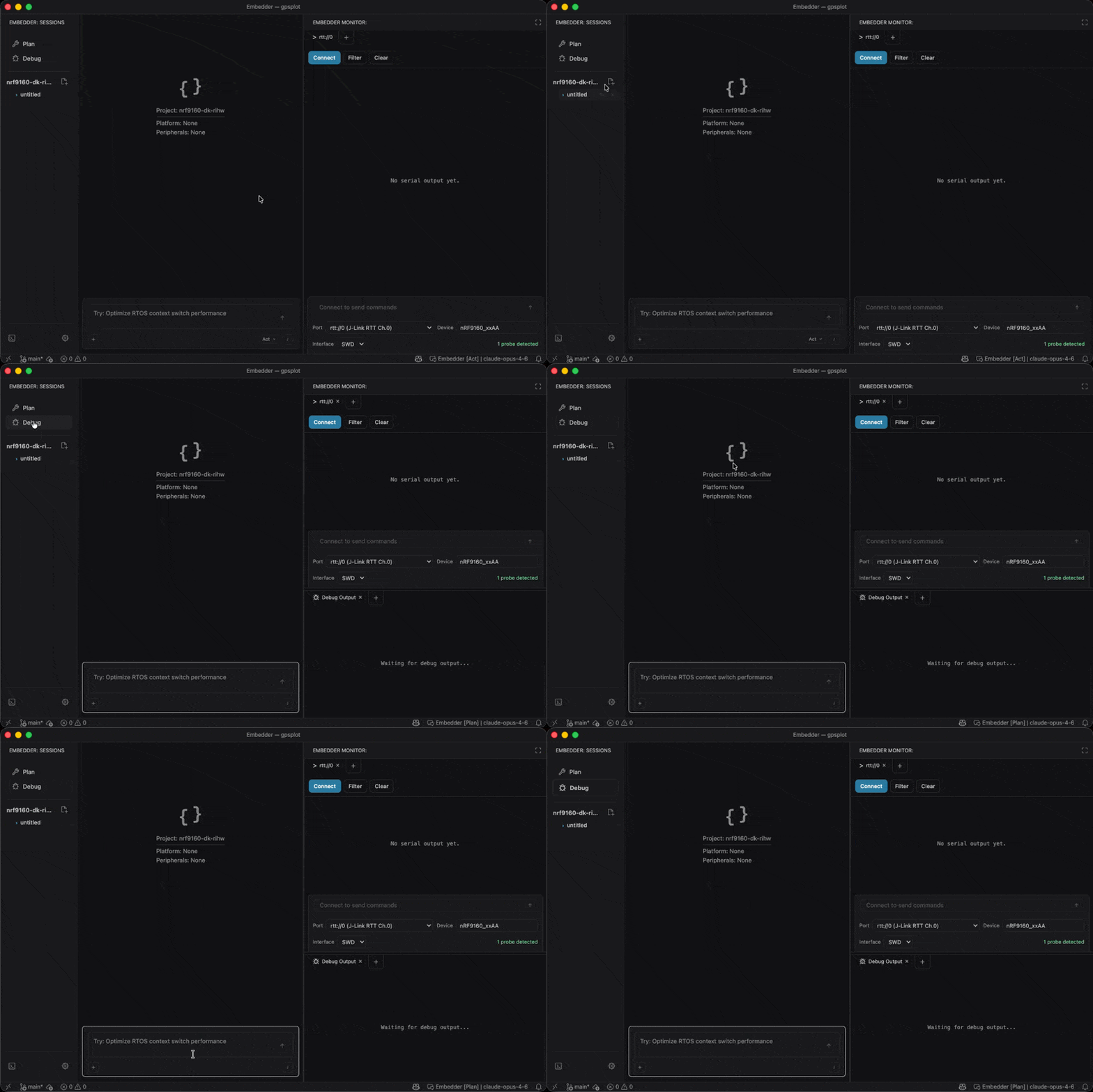 On entry, Embedder checks for a connected J-Link probe (and offers to install J-Link software if missing), runs `hardware_status` to list every connected instrument, and auto-loads the helper docs for each one. Python helpers for power analyzers (`ppk2-api`, `joulescope`) and logic analyzers (`logic2-automation`, `dwfpy`) are installed on first use, not at mode entry — you'll get a confirmation prompt the first time the agent tries to run a script for a given device.
Always enter debug mode *before* asking the agent to probe. Outside of debug mode, the GDB and instrument tools are unavailable and the agent can't run them.
## How to prompt in debug mode
Describe the symptom in natural language. Embedder picks the right instrument and writes the script for you.
```txt embedder theme={"system"}
> the device isn't logging anything — use gdb to figure out where it's hanging
```
```txt embedder theme={"system"}
> capture 2 seconds of I²C on the BME280 and show me the addresses
```
```txt embedder theme={"system"}
> measure sleep current on this board at 3.3V for 5 seconds
```
```txt embedder theme={"system"}
> the chip resets when the motor PWM kicks in — find out why
```
You don't need to name the tool. If you say "is this clock signal clean?" the agent reaches for the scope; "capture UART" reaches for the logic analyzer. Naming the tool ("use gdb", "use the Joulescope") narrows the choice when there's ambiguity.
## What the agent does behind the scenes
For every problem, Embedder follows a structured **Observe → Hypothesize → Probe → Verify** loop:
Reads the `hardware_status` snapshot, recent serial / RTT history, current GDB state, and the source files involved.
Lists candidate root causes and prioritizes them by likelihood and ease of verification.
Writes and runs a Python script under `.embedder/hardware/` that drives the chosen instruments.
Checks the probe results against each hypothesis. Either narrows the next probe or reports the root cause.
## Sub-guides
Inspect register state, set breakpoints, walk RTOS task lists, snapshot a live target without resetting it.
Capture and decode SPI, I²C, UART, CAN, USB, and 18 other digital protocols.
Profile sleep current, boot energy, and active draw with PPK2 or Joulescope.
Probe analog signals — clock, reset, power rails, comm lines.
Worked scenarios that need multiple instruments — sleep-current regression, intermittent I²C NACK, brown-out under load.
## Tips
* Re-prompt with "refresh hardware status" if you plug in a new instrument mid-session — the agent only auto-detects on entry.
* The agent prefers non-destructive probes by default. If you want it to flash firmware, reset the chip, or erase memory, say so explicitly.
* Sessions in debug mode block `submitWork` — you'll need to leave debug mode (or end the session) to mark the work as done.
## Availability
Debug mode is enabled in standard Embedder builds. Some enterprise builds (e.g. the `infineon` distribution) ship with debug mode disabled — in those cases the `/debug` slash command is hidden and the agent will report "Debug mode unavailable" if asked to switch.
On entry, Embedder checks for a connected J-Link probe (and offers to install J-Link software if missing), runs `hardware_status` to list every connected instrument, and auto-loads the helper docs for each one. Python helpers for power analyzers (`ppk2-api`, `joulescope`) and logic analyzers (`logic2-automation`, `dwfpy`) are installed on first use, not at mode entry — you'll get a confirmation prompt the first time the agent tries to run a script for a given device.
Always enter debug mode *before* asking the agent to probe. Outside of debug mode, the GDB and instrument tools are unavailable and the agent can't run them.
## How to prompt in debug mode
Describe the symptom in natural language. Embedder picks the right instrument and writes the script for you.
```txt embedder theme={"system"}
> the device isn't logging anything — use gdb to figure out where it's hanging
```
```txt embedder theme={"system"}
> capture 2 seconds of I²C on the BME280 and show me the addresses
```
```txt embedder theme={"system"}
> measure sleep current on this board at 3.3V for 5 seconds
```
```txt embedder theme={"system"}
> the chip resets when the motor PWM kicks in — find out why
```
You don't need to name the tool. If you say "is this clock signal clean?" the agent reaches for the scope; "capture UART" reaches for the logic analyzer. Naming the tool ("use gdb", "use the Joulescope") narrows the choice when there's ambiguity.
## What the agent does behind the scenes
For every problem, Embedder follows a structured **Observe → Hypothesize → Probe → Verify** loop:
Reads the `hardware_status` snapshot, recent serial / RTT history, current GDB state, and the source files involved.
Lists candidate root causes and prioritizes them by likelihood and ease of verification.
Writes and runs a Python script under `.embedder/hardware/` that drives the chosen instruments.
Checks the probe results against each hypothesis. Either narrows the next probe or reports the root cause.
## Sub-guides
Inspect register state, set breakpoints, walk RTOS task lists, snapshot a live target without resetting it.
Capture and decode SPI, I²C, UART, CAN, USB, and 18 other digital protocols.
Profile sleep current, boot energy, and active draw with PPK2 or Joulescope.
Probe analog signals — clock, reset, power rails, comm lines.
Worked scenarios that need multiple instruments — sleep-current regression, intermittent I²C NACK, brown-out under load.
## Tips
* Re-prompt with "refresh hardware status" if you plug in a new instrument mid-session — the agent only auto-detects on entry.
* The agent prefers non-destructive probes by default. If you want it to flash firmware, reset the chip, or erase memory, say so explicitly.
* Sessions in debug mode block `submitWork` — you'll need to leave debug mode (or end the session) to mark the work as done.
## Availability
Debug mode is enabled in standard Embedder builds. Some enterprise builds (e.g. the `infineon` distribution) ship with debug mode disabled — in those cases the `/debug` slash command is hidden and the agent will report "Debug mode unavailable" if asked to switch.