> ## Documentation Index
> Fetch the complete documentation index at: https://docs.embedder.com/llms.txt
> Use this file to discover all available pages before exploring further.
# Power analyzer
> Ask Embedder to measure sleep current, boot energy, or active draw with a Nordic PPK2 or Jetperch Joulescope
In debug mode, Embedder can drive a Nordic PPK2 or Jetperch Joulescope to measure DUT current, voltage, and energy. Captures auto-publish to the **Power tab** of the Console panel (VS Code extension and standalone app) with µA / mA / A and energy stats.
The two devices cover different needs:
| | PPK2 | Joulescope |
| -------------------- | ----------------------------- | -------------------------------------------- |
| Powers the DUT | ✓ (source meter, 800–5000 mV) | — (pass-through only, needs external supply) |
| Cheap | ✓ | — |
| Wider current range | — | ✓ (down to nA, up to 10 A) |
| Higher sample rate | 100 kHz | up to 2 MS/s |
| Hardware UART decode | — | ✓ (JS220 only) |
| JLS recording | — | ✓ |
## Prerequisites
Run `/debug`. Embedder's preflight detects PPK2 / Joulescope and walks you through Python / package install if needed.
Embedder installs `ppk2-api` (GPL-2.0) or `joulescope` (Apache-2.0) automatically the first time you run a script for that device. Approve when prompted.
Wiring depends on the device — see the per-device sections below.
## PPK2 wiring
The PPK2 has a physical mode switch. Set it before connecting:
| Position | Use when |
| ---------------- | ----------------------------------------------------- |
| **Source meter** | The PPK2 powers your DUT (800–5000 mV). |
| **Ampere meter** | The DUT has its own supply; the PPK2 measures inline. |
* PPK2 `VOUT+` → DUT VDD
* PPK2 `GND` → DUT GND
On Nordic DK boards, remove the **nRF CURRENT** jumper to disconnect the on-board supply, then connect PPK2 in its place. Plug the jumper back in before using serial, RTT, or GDB through the on-board debugger — the debug chip loses power without it.
* External supply (+) → PPK2 `VIN`
* PPK2 `VOUT+` → DUT VDD
* GND common
Same Nordic DK jumper warning applies.
## Joulescope wiring
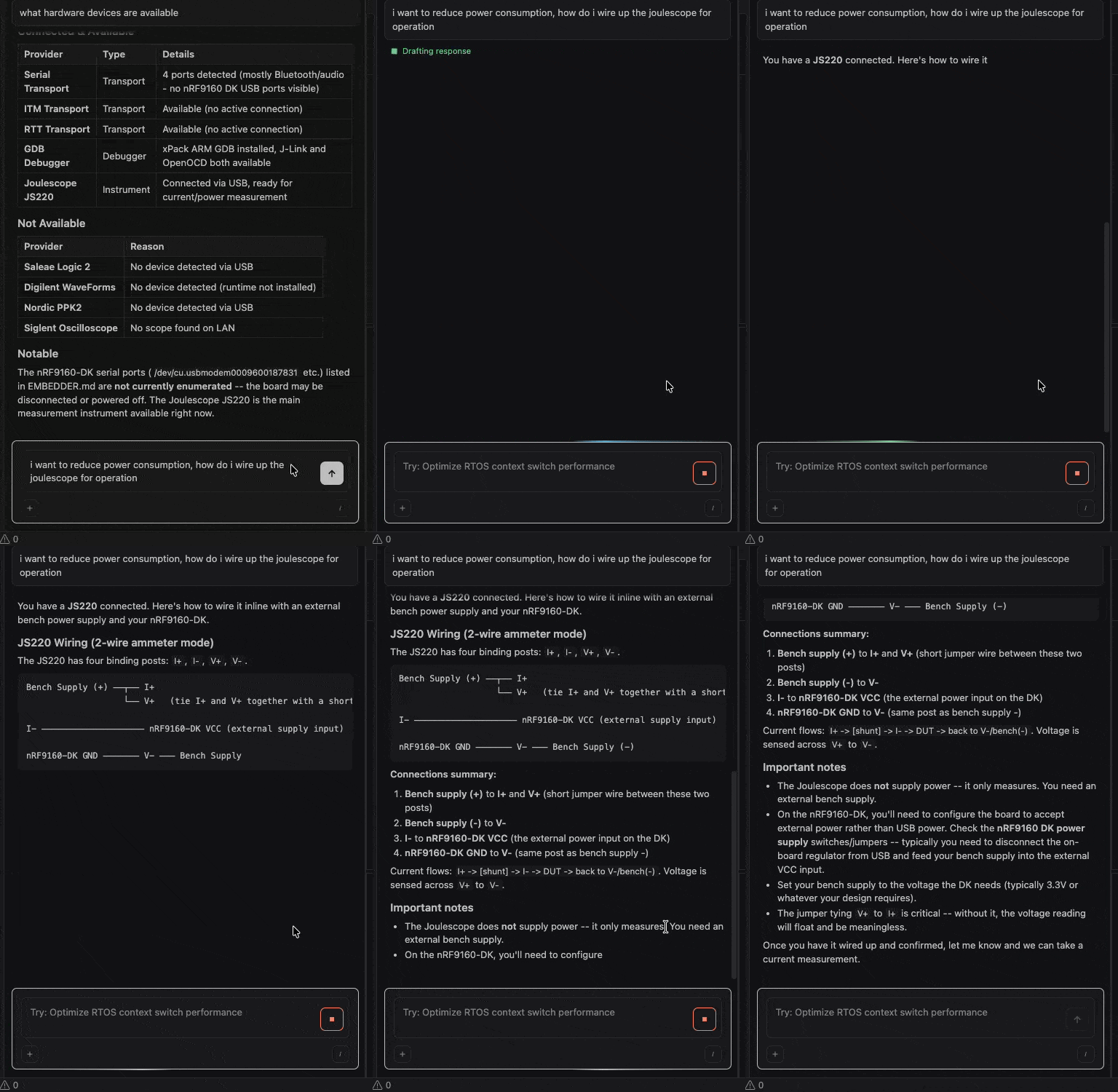
JS110 and JS220 use different binding posts. Check the front panel or ask Embedder ("what Joulescope model is connected?"):
* Bench supply (+) → `IN+`
* Bench supply (−) → `IN-`
* `OUT+` → DUT VCC
* `OUT-` → DUT GND
* Bench supply (+) → `I+` **and** `V+` (tie these together with a short jumper — without it, voltage reads as floating)
* Bench supply (−) → `V-`
* `I-` → DUT VCC
* DUT GND → `V-`
Use this for low-impedance or high-current measurements where wire resistance matters.
* Bench supply (+) → `I+`
* `I-` → DUT VCC
* `V+` → DUT VCC sense point (directly on the DUT)
* `V-` → DUT GND sense point
* Bench supply (−) → DUT GND
See JS220 User's Guide §9.4 for diagrams.
The FP02-BNA front panel relabels JS220 binding posts as JS110-style `IN+` / `IN-` / `OUT+` / `OUT-` — use the JS110 wiring above.
The Joulescope is **pass-through only** — it cannot supply power. You always need an external bench supply.
If you're not sure which posts go where, ask Embedder — it'll walk you through the wiring for your specific model.
 ## Example prompts
**Measure sleep current with a PPK2:**
```txt embedder theme={"system"}
> measure DUT current at 3.3V for 5 seconds in source meter mode
```
The agent reports avg / min / max in µA, plus a chart in the Power tab.
**Profile boot with a Joulescope:**
```txt embedder theme={"system"}
> profile the first 3 seconds of boot — i want to see where the current spikes
```
The chart shows the full transient, plus avg and peak current. Pass `>60s` durations and the agent will switch to streaming or JLS recording automatically.
**Capture only a sleep window:**
```txt embedder theme={"system"}
> the firmware drives GPI0 high while it sleeps. trigger a Joulescope capture on rising GPI0, end on falling, and report avg µA
```
This is the JS220 GPI-trigger pattern — only the sleep window is captured, ignoring boot and wake transitions.
**Decode UART alongside the power trace (JS220 only):**
```txt embedder theme={"system"}
> hook GPI1 to the DUT TX pin at 115200 baud. measure 5 seconds of current and tell me which log lines correspond to the high-current windows.
```
The JS220 FPGA decodes the UART in parallel with current sampling — perfect for correlating "enter\_sleep" and "wake" log lines with the actual transitions.
**Multi-phase test:**
```txt embedder theme={"system"}
> measure idle current for 2s, then trigger an LTE attach, measure another 5s. report charge for each phase separately.
```
**Long capture with raw samples:**
```txt embedder theme={"system"}
> record 30 seconds of current at full sample rate to a JLS file so I can analyze it offline
```
JLS files open in the Joulescope desktop UI for advanced analysis.
## What the agent does for you
The agent picks PPK2 or Joulescope helpers based on which device is connected, writes the script under `.embedder/hardware/`, and surfaces the result both as a structured JSON payload (avg / min / max / charge / energy) and as an interactive chart in the Power tab. The Power tab decimates with min / max windowing — peaks and transients are preserved, not averaged out.
## Common gotchas
Source meter mode: did you ask the agent to power on the DUT? (`measure` does this for you.) Ampere meter mode: is the external supply actually on?
On JS220 in 2-wire mode, did you tie `V+` to `I+`? Without that jumper, the voltage input floats.
On Nordic DK boards in PPK2 ampere meter mode, the **nRF CURRENT** jumper must be plugged back in before using serial, RTT, or GDB through the on-board debugger.
`joulescope_measure` buffers in RAM. For longer captures, ask for "streaming" (running stats only) or "JLS recording" (raw samples to disk).
The 10 A range is rated for 3 A continuous; bursts up to 10 A are fine for under 50 ms. For higher continuous loads, use a different instrument.
## Next steps
Snapshot register state during a power capture without resetting the chip.
Sleep-current regression: power capture + UART decode + GDB attach.
## Example prompts
**Measure sleep current with a PPK2:**
```txt embedder theme={"system"}
> measure DUT current at 3.3V for 5 seconds in source meter mode
```
The agent reports avg / min / max in µA, plus a chart in the Power tab.
**Profile boot with a Joulescope:**
```txt embedder theme={"system"}
> profile the first 3 seconds of boot — i want to see where the current spikes
```
The chart shows the full transient, plus avg and peak current. Pass `>60s` durations and the agent will switch to streaming or JLS recording automatically.
**Capture only a sleep window:**
```txt embedder theme={"system"}
> the firmware drives GPI0 high while it sleeps. trigger a Joulescope capture on rising GPI0, end on falling, and report avg µA
```
This is the JS220 GPI-trigger pattern — only the sleep window is captured, ignoring boot and wake transitions.
**Decode UART alongside the power trace (JS220 only):**
```txt embedder theme={"system"}
> hook GPI1 to the DUT TX pin at 115200 baud. measure 5 seconds of current and tell me which log lines correspond to the high-current windows.
```
The JS220 FPGA decodes the UART in parallel with current sampling — perfect for correlating "enter\_sleep" and "wake" log lines with the actual transitions.
**Multi-phase test:**
```txt embedder theme={"system"}
> measure idle current for 2s, then trigger an LTE attach, measure another 5s. report charge for each phase separately.
```
**Long capture with raw samples:**
```txt embedder theme={"system"}
> record 30 seconds of current at full sample rate to a JLS file so I can analyze it offline
```
JLS files open in the Joulescope desktop UI for advanced analysis.
## What the agent does for you
The agent picks PPK2 or Joulescope helpers based on which device is connected, writes the script under `.embedder/hardware/`, and surfaces the result both as a structured JSON payload (avg / min / max / charge / energy) and as an interactive chart in the Power tab. The Power tab decimates with min / max windowing — peaks and transients are preserved, not averaged out.
## Common gotchas
Source meter mode: did you ask the agent to power on the DUT? (`measure` does this for you.) Ampere meter mode: is the external supply actually on?
On JS220 in 2-wire mode, did you tie `V+` to `I+`? Without that jumper, the voltage input floats.
On Nordic DK boards in PPK2 ampere meter mode, the **nRF CURRENT** jumper must be plugged back in before using serial, RTT, or GDB through the on-board debugger.
`joulescope_measure` buffers in RAM. For longer captures, ask for "streaming" (running stats only) or "JLS recording" (raw samples to disk).
The 10 A range is rated for 3 A continuous; bursts up to 10 A are fine for under 50 ms. For higher continuous loads, use a different instrument.
## Next steps
Snapshot register state during a power capture without resetting the chip.
Sleep-current regression: power capture + UART decode + GDB attach.