> ## Documentation Index
> Fetch the complete documentation index at: https://docs.embedder.com/llms.txt
> Use this file to discover all available pages before exploring further.
# GitHub bot setup
> Run Embedder in the background so it can pick up GitHub work automatically
Embedder can run as a background daemon for a Git repository. Once it is running, `@embedder` GitHub comments for that repo can be claimed, executed in your local checkout, and tracked from `embedder monitor`.
The normal setup flow is `embedder start daemon`. It starts the daemon in the background, resolves the Git repository root, sets up daemon credentials, and selects the team and project used for GitHub work.
## Before you begin
Make sure you have:
* Embedder installed. If you have not installed it yet, start with [Quickstart](/quickstart).
* A local checkout of the repo where GitHub work should run.
* The GitHub App installed for the org or repo you want Embedder to work on.
* Access to the Embedder team and project that should receive the daemon work.
* A machine that can stay online while the daemon is running.
For the smoothest setup, sign in with the normal `embedder` command first. If there is no stored login or daemon API key, `embedder start daemon` will ask you to paste an API key.
## Set up the GitHub bot
Start from the local Git checkout where Embedder should run GitHub work.
```bash theme={"system"}
cd /path/to/your/repo
```
Embedder resolves the Git repository root automatically, so you can also run the daemon commands from a subdirectory of the repo.
Run:
```bash theme={"system"}
embedder start daemon
```
The command starts a detached daemon for this Git workspace. You can close the terminal after startup; the daemon keeps running in the background.
If setup succeeds, the command prints the daemon PID, repo path, selected team, selected project, and how that team/project selection was chosen.
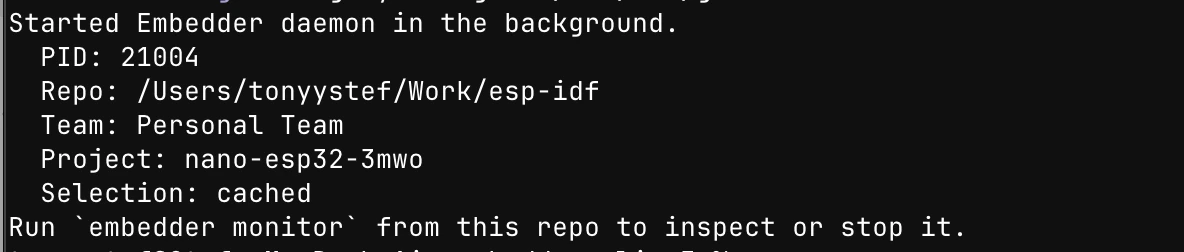 If a daemon is already running for the repo, Embedder prints the active PID instead of starting a duplicate.
The daemon needs an Embedder team and project for GitHub work claiming.
By default, `embedder start daemon` chooses them in this order:
1. Reuse the cached team/project for this repo.
2. Auto-select when your account has only one available choice.
3. Prompt you when there are multiple teams or projects.
To pin the daemon explicitly, pass both `--team` and `--project`:
```bash theme={"system"}
embedder start daemon --team "Personal Team" --project "nano-esp32-3mwo"
```
You can also use environment variables:
```bash theme={"system"}
EMBEDDER_TEAM="Personal Team" EMBEDDER_PROJECT="nano-esp32-3mwo" embedder start daemon
```
`--team` and `--project` must be provided together. Passing only one of them exits with a usage error.
From the same repo, run:
```bash theme={"system"}
embedder monitor
```
The monitor shows connection state, workspace, backend URL, selected claim team and project, GitHub work phase, current repo, errors, hardware state, and a `[ Stop ]` control.
If a daemon is already running for the repo, Embedder prints the active PID instead of starting a duplicate.
The daemon needs an Embedder team and project for GitHub work claiming.
By default, `embedder start daemon` chooses them in this order:
1. Reuse the cached team/project for this repo.
2. Auto-select when your account has only one available choice.
3. Prompt you when there are multiple teams or projects.
To pin the daemon explicitly, pass both `--team` and `--project`:
```bash theme={"system"}
embedder start daemon --team "Personal Team" --project "nano-esp32-3mwo"
```
You can also use environment variables:
```bash theme={"system"}
EMBEDDER_TEAM="Personal Team" EMBEDDER_PROJECT="nano-esp32-3mwo" embedder start daemon
```
`--team` and `--project` must be provided together. Passing only one of them exits with a usage error.
From the same repo, run:
```bash theme={"system"}
embedder monitor
```
The monitor shows connection state, workspace, backend URL, selected claim team and project, GitHub work phase, current repo, errors, hardware state, and a `[ Stop ]` control.
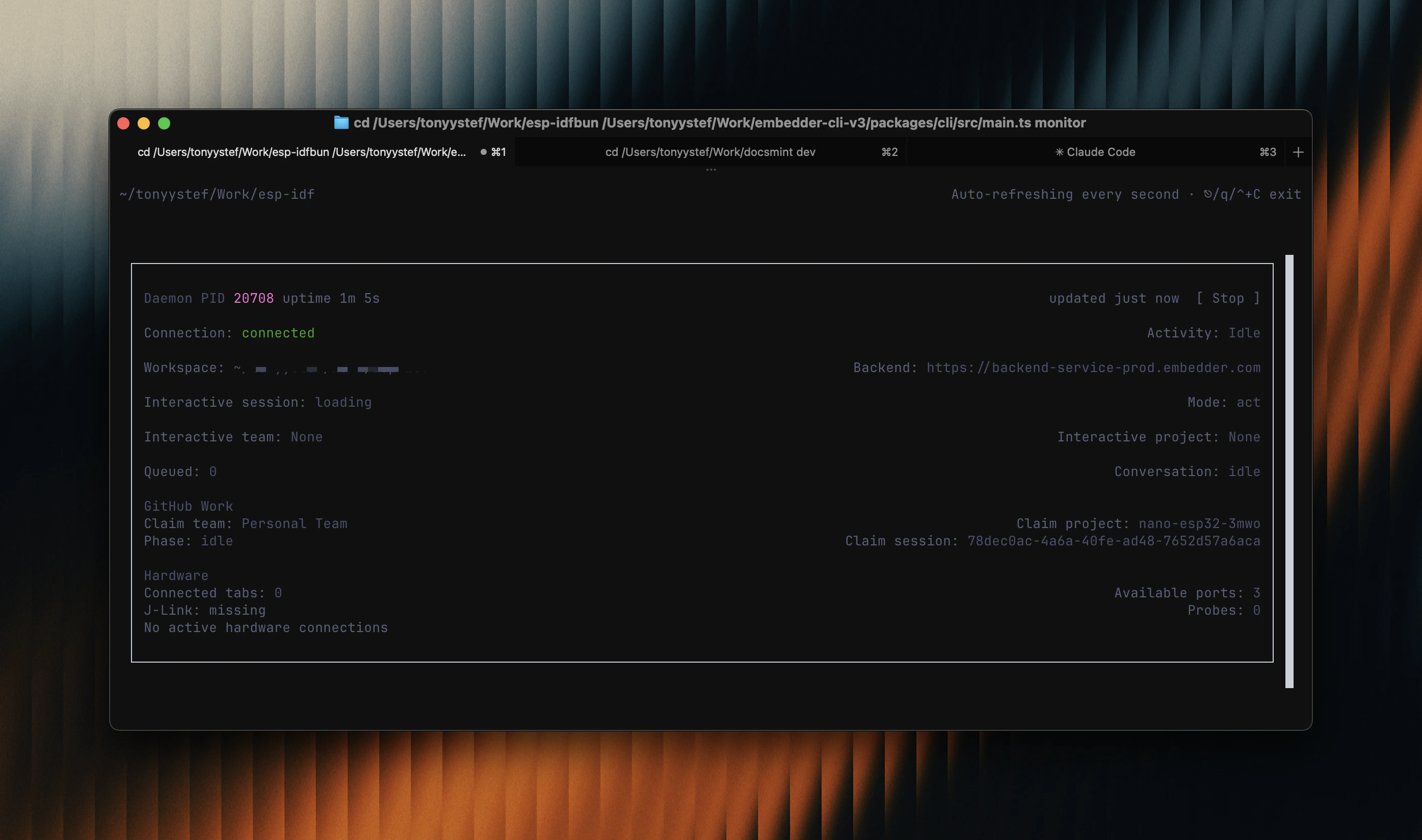 If the monitor shows an active daemon for the workspace, the bot is live.
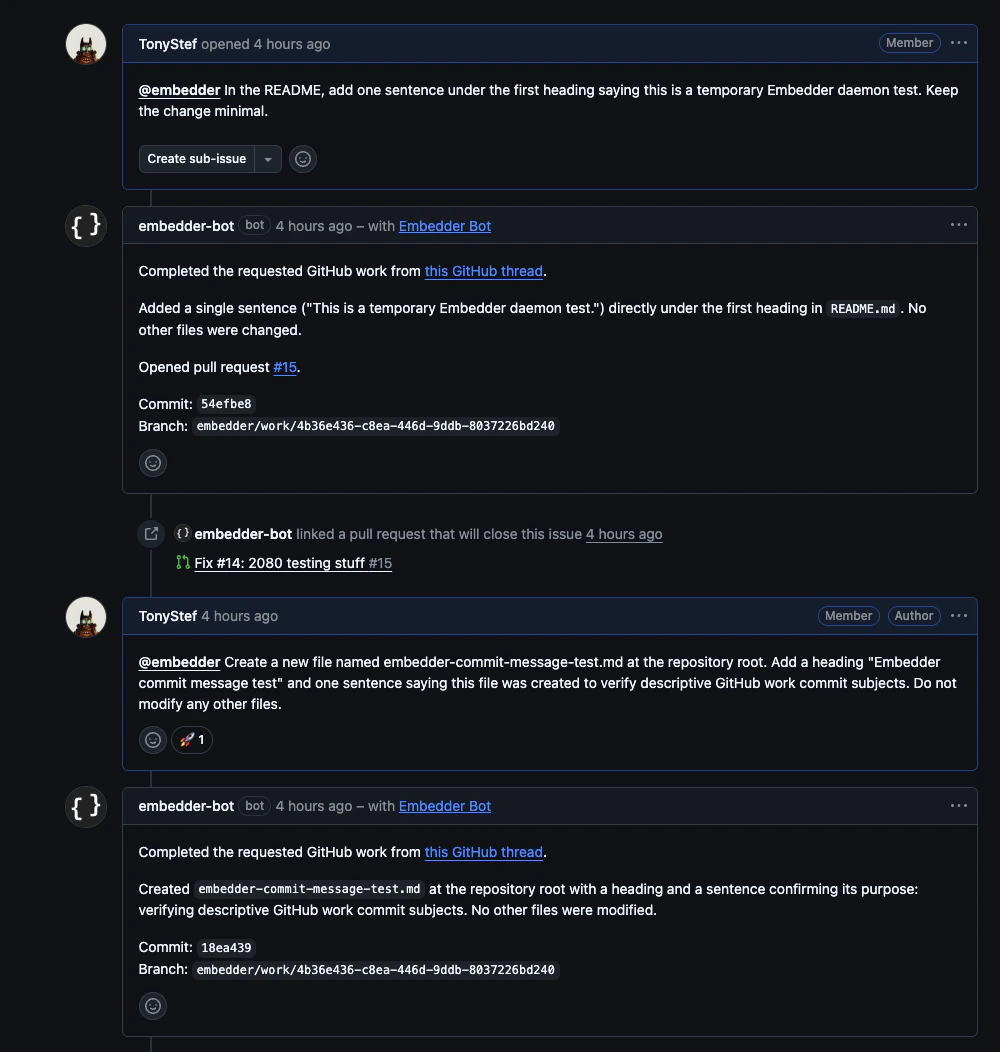
Open an issue or pull request in a repository the GitHub App can access, then mention Embedder:
```text theme={"system"}
@embedder please explain this PR
```
When the backend assigns the work to your daemon, the monitor changes from idle or polling to executing GitHub work for that repository.
If the monitor shows an active daemon for the workspace, the bot is live.
Open an issue or pull request in a repository the GitHub App can access, then mention Embedder:
```text theme={"system"}
@embedder please explain this PR
```
When the backend assigns the work to your daemon, the monitor changes from idle or polling to executing GitHub work for that repository.
 You can stop the daemon from the monitor by selecting `[ Stop ]`.
You can also stop it from the command line:
```bash theme={"system"}
embedder stop daemon
```
If more than one daemon is active for the workspace, pass the PID shown by `embedder monitor`:
```bash theme={"system"}
embedder stop daemon --pid 71452
```
## Credentials
`embedder start daemon` handles daemon credentials for the normal setup flow:
1. It uses `EMBEDDER_API_KEY` if it is set.
2. It reuses a stored daemon API key for the backend URL.
3. It creates and stores a daemon API key from your current Embedder login when possible.
4. It asks you to paste an API key if no stored credential is available.
For non-interactive setup, create an API key in [the dashboard](https://app.embedder.com/settings/api-keys), then start the daemon with `EMBEDDER_API_KEY` set.
```bash theme={"system"}
export EMBEDDER_API_KEY=your_key_here
embedder start daemon
```
```powershell theme={"system"}
$env:EMBEDDER_API_KEY="your_key_here"
embedder start daemon
```
Store API keys safely. Anyone with the key can run daemon work as your account.
## Run from another directory
Use `--dir` when you want to start or stop a daemon for a repo without changing directories first.
```bash theme={"system"}
embedder start daemon --dir /path/to/your/repo
embedder stop daemon --dir /path/to/your/repo
```
`embedder monitor` resolves the current Git repo root automatically, so run it from the repo or one of its subdirectories.
## Advanced daemon mode
`embedder --daemon` still starts the long-lived daemon process directly, but it expects daemon credentials and project context to already be available. Most users should use `embedder start daemon` instead because it handles setup, launches the process in the background, and keeps `start`, `monitor`, and `stop` pointed at the same Git workspace.
## Troubleshooting
Run `embedder start daemon` from inside a Git checkout, or pass `--dir /path/to/repo`.
Run `embedder` once to sign in, then run `embedder start daemon` again. For non-interactive machines, create an API key in [the dashboard](https://app.embedder.com/settings/api-keys), set `EMBEDDER_API_KEY`, and start the daemon.
Run `embedder start daemon --team "Team Name" --project "Project Name"` from the repo. Embedder stores that selection for the workspace and will reuse it on later starts.
Run `embedder monitor` from the same Git workspace where the daemon was started. If you started it with `--dir`, change into that repo or use `embedder stop daemon --dir /path/to/repo` to manage it from elsewhere.
Check the monitor first. If it shows `GitHub repository not claimable`, the daemon is connected but the backend cannot claim work for that repo. Verify that the GitHub App is installed for the org or repo and that the repo is connected to Embedder.
Run `embedder monitor` to see active daemon PIDs for the workspace, then stop the specific process with `embedder stop daemon --pid `.
## Next steps
Explore practical examples of what you can do with Embedder.
Connect Embedder to external tools and data sources.
You can stop the daemon from the monitor by selecting `[ Stop ]`.
You can also stop it from the command line:
```bash theme={"system"}
embedder stop daemon
```
If more than one daemon is active for the workspace, pass the PID shown by `embedder monitor`:
```bash theme={"system"}
embedder stop daemon --pid 71452
```
## Credentials
`embedder start daemon` handles daemon credentials for the normal setup flow:
1. It uses `EMBEDDER_API_KEY` if it is set.
2. It reuses a stored daemon API key for the backend URL.
3. It creates and stores a daemon API key from your current Embedder login when possible.
4. It asks you to paste an API key if no stored credential is available.
For non-interactive setup, create an API key in [the dashboard](https://app.embedder.com/settings/api-keys), then start the daemon with `EMBEDDER_API_KEY` set.
```bash theme={"system"}
export EMBEDDER_API_KEY=your_key_here
embedder start daemon
```
```powershell theme={"system"}
$env:EMBEDDER_API_KEY="your_key_here"
embedder start daemon
```
Store API keys safely. Anyone with the key can run daemon work as your account.
## Run from another directory
Use `--dir` when you want to start or stop a daemon for a repo without changing directories first.
```bash theme={"system"}
embedder start daemon --dir /path/to/your/repo
embedder stop daemon --dir /path/to/your/repo
```
`embedder monitor` resolves the current Git repo root automatically, so run it from the repo or one of its subdirectories.
## Advanced daemon mode
`embedder --daemon` still starts the long-lived daemon process directly, but it expects daemon credentials and project context to already be available. Most users should use `embedder start daemon` instead because it handles setup, launches the process in the background, and keeps `start`, `monitor`, and `stop` pointed at the same Git workspace.
## Troubleshooting
Run `embedder start daemon` from inside a Git checkout, or pass `--dir /path/to/repo`.
Run `embedder` once to sign in, then run `embedder start daemon` again. For non-interactive machines, create an API key in [the dashboard](https://app.embedder.com/settings/api-keys), set `EMBEDDER_API_KEY`, and start the daemon.
Run `embedder start daemon --team "Team Name" --project "Project Name"` from the repo. Embedder stores that selection for the workspace and will reuse it on later starts.
Run `embedder monitor` from the same Git workspace where the daemon was started. If you started it with `--dir`, change into that repo or use `embedder stop daemon --dir /path/to/repo` to manage it from elsewhere.
Check the monitor first. If it shows `GitHub repository not claimable`, the daemon is connected but the backend cannot claim work for that repo. Verify that the GitHub App is installed for the org or repo and that the repo is connected to Embedder.
Run `embedder monitor` to see active daemon PIDs for the workspace, then stop the specific process with `embedder stop daemon --pid `.
## Next steps
Explore practical examples of what you can do with Embedder.
Connect Embedder to external tools and data sources.