> ## Documentation Index
> Fetch the complete documentation index at: https://docs.embedder.com/llms.txt
> Use this file to discover all available pages before exploring further.
# 常见工作流
这页提供最常用的实战流程:项目初始化、硬件交互、固件开发、调试与会话管理。
## 新项目启动
```txt embedder theme={"system"}
/project
```
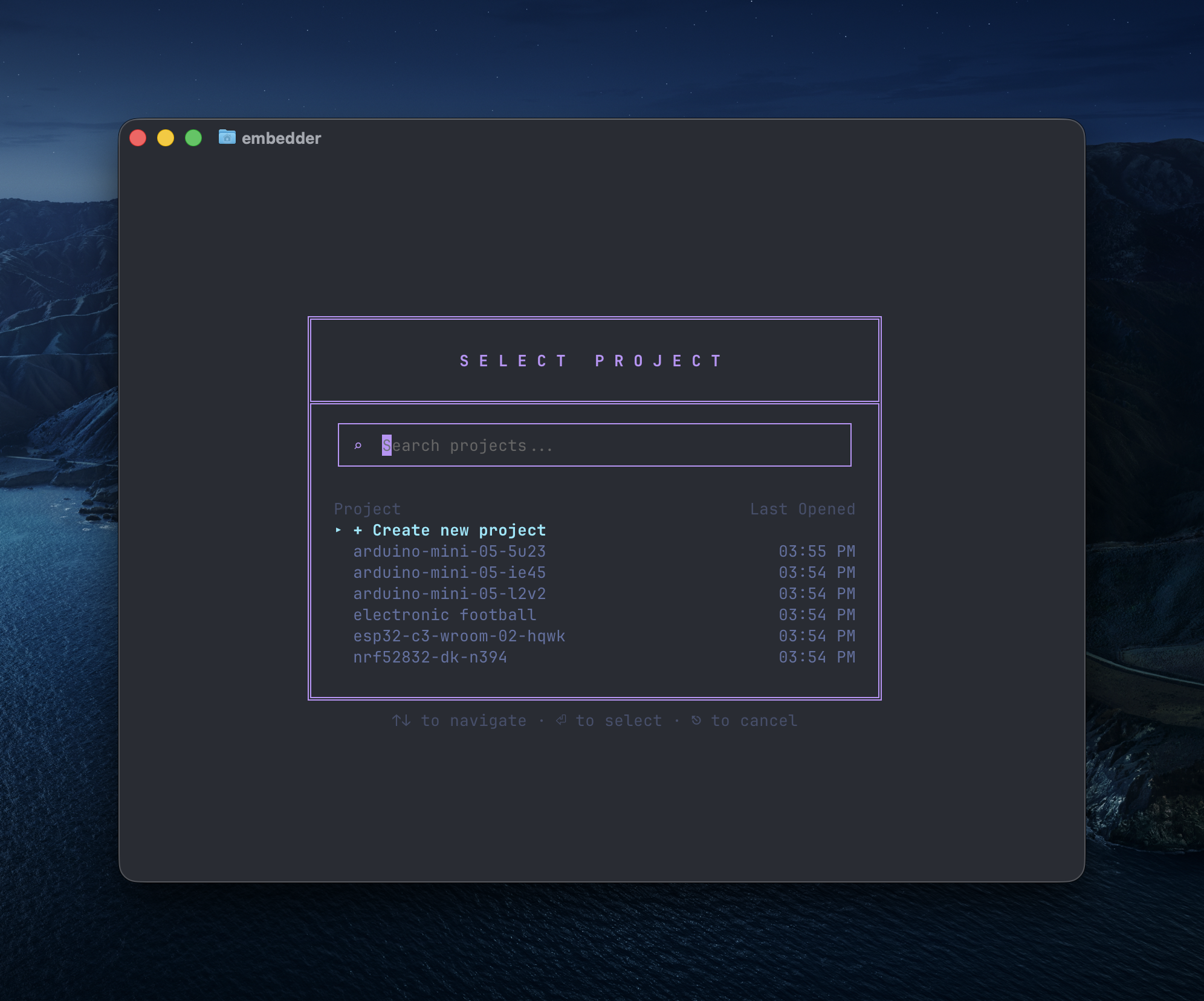 从官方目录选择平台,或手动新增。
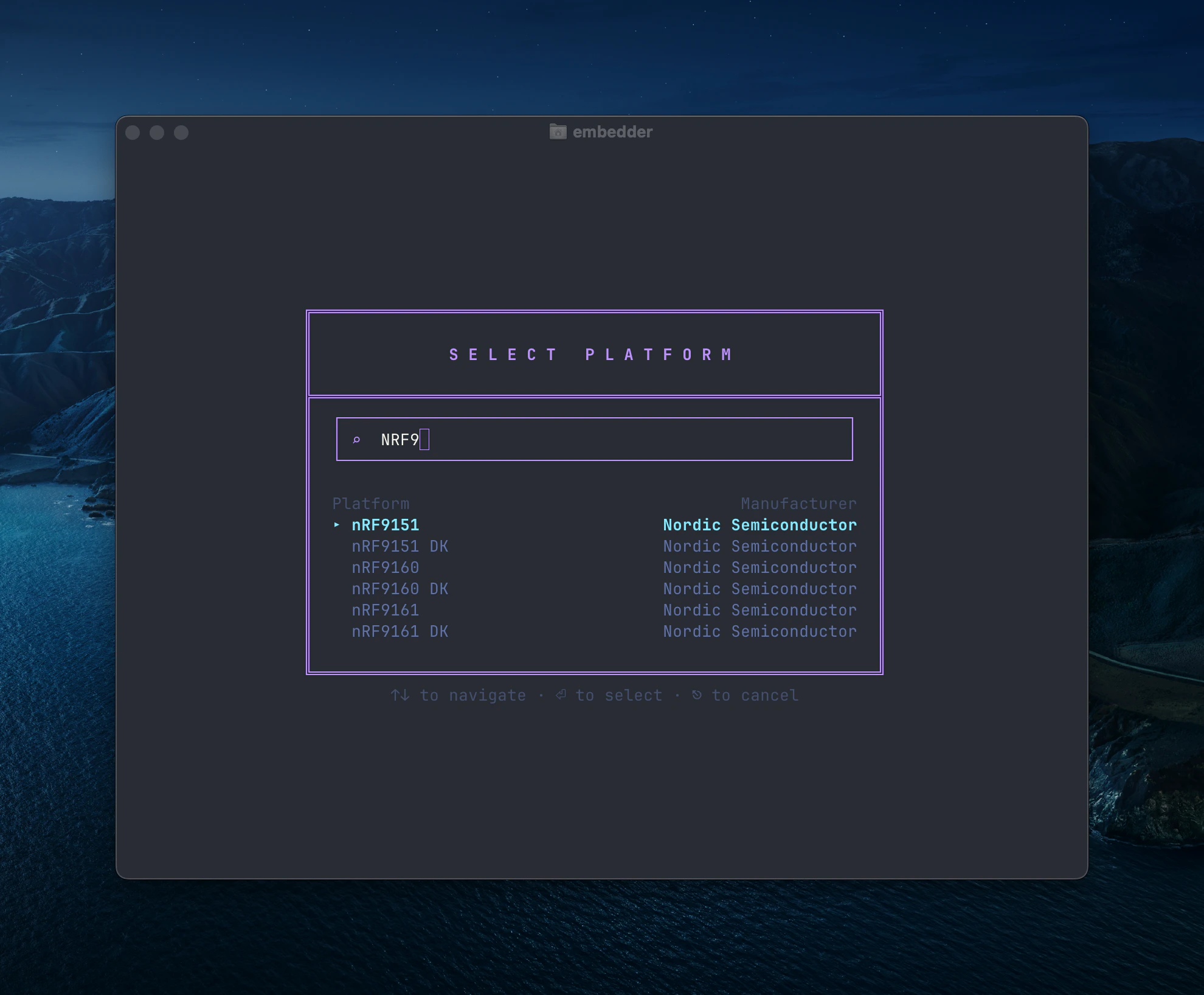 如需新增平台,输入名称并点击 `+ Add "[platform name]"`,随后上传相关文档。
选择你要用的外设(I2C/SPI/UART 等)。
如需新增平台,输入名称并点击 `+ Add "[platform name]"`,随后上传相关文档。
选择你要用的外设(I2C/SPI/UART 等)。
 后续可随时再次运行 `/peripheral` 调整配置。
```txt embedder theme={"system"}
/init
```
生成 `EMBEDDER.md`,便于后续会话复用约束和命令。
## 硬件交互
### 串口监视器
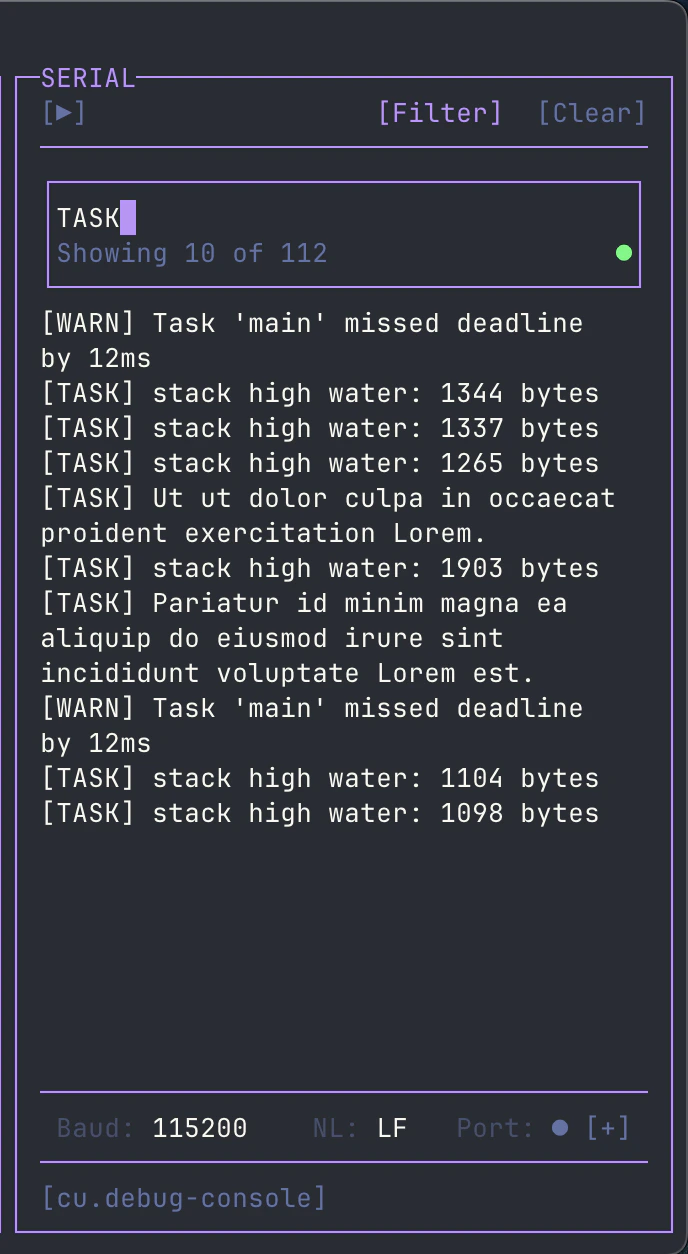
打开串口侧边栏:
```txt Embedder theme={"system"}
/serial
```
或使用快捷键 `` Ctrl+` ``。
若不希望刷写后自动连接串口,可在提示中写:
```txt Embedder theme={"system"}
> don't auto-connect to serial after flashing
```
你还可以在串口工具栏中用 `[Filter]` 进行 regex 过滤。
后续可随时再次运行 `/peripheral` 调整配置。
```txt embedder theme={"system"}
/init
```
生成 `EMBEDDER.md`,便于后续会话复用约束和命令。
## 硬件交互
### 串口监视器
打开串口侧边栏:
```txt Embedder theme={"system"}
/serial
```
或使用快捷键 `` Ctrl+` ``。
若不希望刷写后自动连接串口,可在提示中写:
```txt Embedder theme={"system"}
> don't auto-connect to serial after flashing
```
你还可以在串口工具栏中用 `[Filter]` 进行 regex 过滤。
 ## 固件开发
### 写驱动
```txt Embedder theme={"system"}
> write an I2C driver for the BME280 sensor on I2C1 (SDA=PB7, SCL=PB6).
> include functions for reading temperature, humidity, and pressure.
```
```txt Embedder theme={"system"}
> create a UART driver for GPS module on UART2 at 9600 baud.
> implement a ring buffer for RX and parse NMEA sentences.
```
```txt Embedder theme={"system"}
> implement SPI driver for the SD card module on SPI1.
> include initialization and single block read/write.
```
### 构建与刷写
```txt Embedder theme={"system"}
> help me install the dependencies for this project
```
```txt Embedder theme={"system"}
> build the project
```
```txt Embedder theme={"system"}
> flash the firmware to the device
```
```txt Embedder theme={"system"}
> build and flash, then show me the serial output
```
## 串口调试
```txt Embedder theme={"system"}
> what's causing this error in the serial output?
```
```txt Embedder theme={"system"}
> the device keeps resetting, analyze the crash dump
```
```txt Embedder theme={"system"}
> add debug prints to trace the initialization sequence
```
## Plan 模式与 Act 模式
* **Act 模式**:可读写和执行命令,适合实现改动
* **Plan 模式**:只读分析,适合调研和方案设计
切换方式:`Shift+Tab`、`/plan`、`/act`
## 文档与上下文
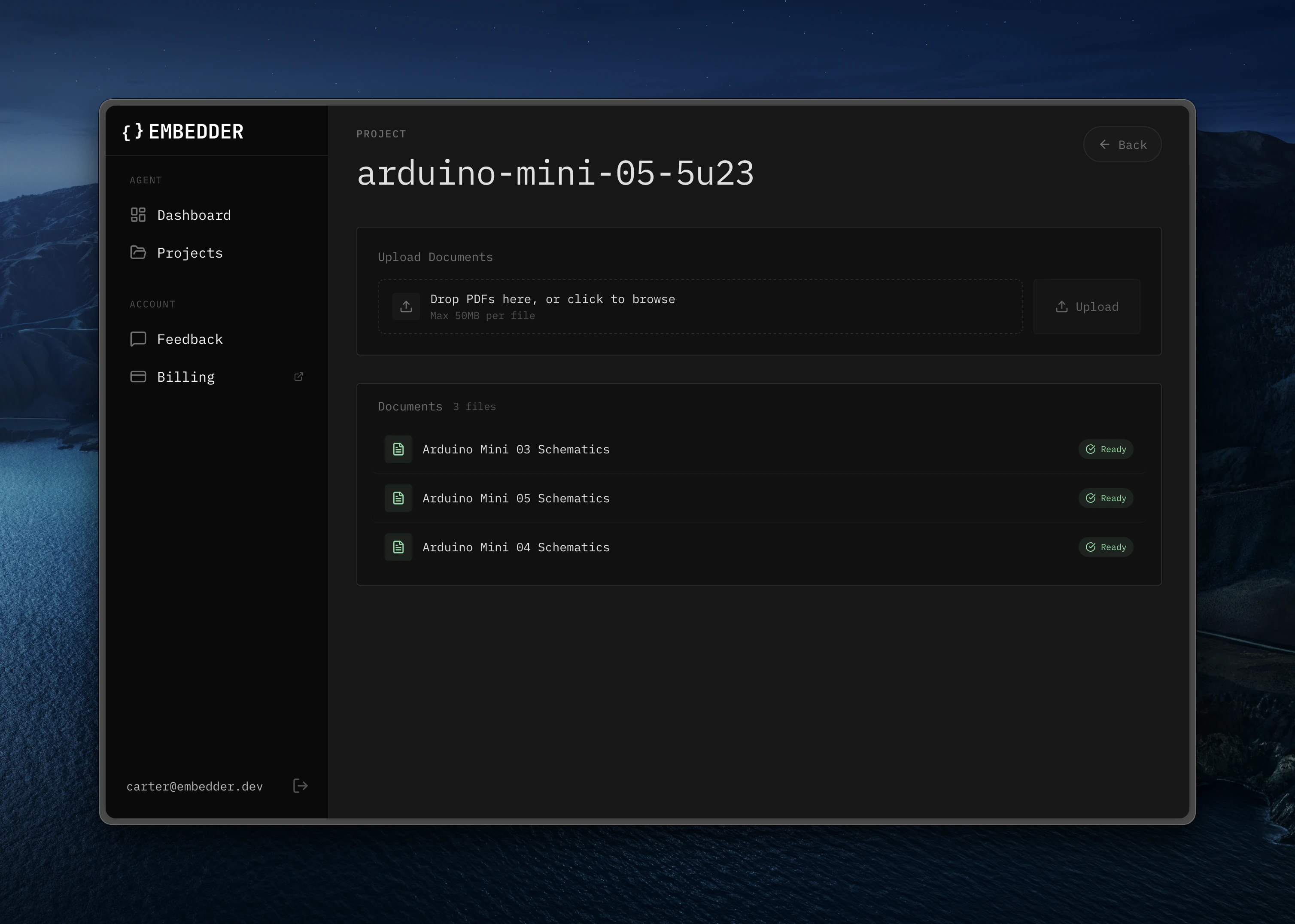
你可以通过 `/console` 上传更多芯片手册、参考文档和外设资料。
## 固件开发
### 写驱动
```txt Embedder theme={"system"}
> write an I2C driver for the BME280 sensor on I2C1 (SDA=PB7, SCL=PB6).
> include functions for reading temperature, humidity, and pressure.
```
```txt Embedder theme={"system"}
> create a UART driver for GPS module on UART2 at 9600 baud.
> implement a ring buffer for RX and parse NMEA sentences.
```
```txt Embedder theme={"system"}
> implement SPI driver for the SD card module on SPI1.
> include initialization and single block read/write.
```
### 构建与刷写
```txt Embedder theme={"system"}
> help me install the dependencies for this project
```
```txt Embedder theme={"system"}
> build the project
```
```txt Embedder theme={"system"}
> flash the firmware to the device
```
```txt Embedder theme={"system"}
> build and flash, then show me the serial output
```
## 串口调试
```txt Embedder theme={"system"}
> what's causing this error in the serial output?
```
```txt Embedder theme={"system"}
> the device keeps resetting, analyze the crash dump
```
```txt Embedder theme={"system"}
> add debug prints to trace the initialization sequence
```
## Plan 模式与 Act 模式
* **Act 模式**:可读写和执行命令,适合实现改动
* **Plan 模式**:只读分析,适合调研和方案设计
切换方式:`Shift+Tab`、`/plan`、`/act`
## 文档与上下文
你可以通过 `/console` 上传更多芯片手册、参考文档和外设资料。
 示例:
```txt Embedder theme={"system"}
> what's the maximum I2C clock speed for this sensor?
```
```txt Embedder theme={"system"}
> show me the register map for the accelerometer
```
## Bash 模式
以 `!` 前缀直接执行命令,不经 AI 解释:
```bash theme={"system"}
!ls -la
!make clean
!git status
```
## 串口发送模式
以 `~` 前缀直接向设备串口发送:
```txt embedder theme={"system"}
~help
~reset
~get status
```
## 用 `@` 引用文件/目录
```txt Embedder theme={"system"}
> explain the logic in @src/main.c
```
```txt Embedder theme={"system"}
> what's in @src/drivers/?
```
## 会话管理
```txt Embedder theme={"system"}
/project
/history
/compress
```
## 快速参考
| 场景 | 命令 / 快捷键 |
| ------- | -------------------------------------- |
| 新项目配置 | `/project` -> `/peripheral` -> `/init` |
| 打开串口 | `/serial` 或 `` Ctrl+` `` |
| 切换模式 | `Shift+Tab` 或 `/plan` `/act` |
| 引用文件 | 在提示中输入 `@filename` |
| Bash 直连 | `!command` |
| 串口发送 | `~message` |
| 撤销 | `/undo` 或 `Ctrl+Z` |
| 回退 | `/rewind` 或 `Ctrl+Z (2x)` |
| 帮助 | `/help` |
示例:
```txt Embedder theme={"system"}
> what's the maximum I2C clock speed for this sensor?
```
```txt Embedder theme={"system"}
> show me the register map for the accelerometer
```
## Bash 模式
以 `!` 前缀直接执行命令,不经 AI 解释:
```bash theme={"system"}
!ls -la
!make clean
!git status
```
## 串口发送模式
以 `~` 前缀直接向设备串口发送:
```txt embedder theme={"system"}
~help
~reset
~get status
```
## 用 `@` 引用文件/目录
```txt Embedder theme={"system"}
> explain the logic in @src/main.c
```
```txt Embedder theme={"system"}
> what's in @src/drivers/?
```
## 会话管理
```txt Embedder theme={"system"}
/project
/history
/compress
```
## 快速参考
| 场景 | 命令 / 快捷键 |
| ------- | -------------------------------------- |
| 新项目配置 | `/project` -> `/peripheral` -> `/init` |
| 打开串口 | `/serial` 或 `` Ctrl+` `` |
| 切换模式 | `Shift+Tab` 或 `/plan` `/act` |
| 引用文件 | 在提示中输入 `@filename` |
| Bash 直连 | `!command` |
| 串口发送 | `~message` |
| 撤销 | `/undo` 或 `Ctrl+Z` |
| 回退 | `/rewind` 或 `Ctrl+Z (2x)` |
| 帮助 | `/help` |