> ## Documentation Index
> Fetch the complete documentation index at: https://docs.embedder.com/llms.txt
> Use this file to discover all available pages before exploring further.
# 快速开始
## 开始前准备
请先准备:
* 一个终端应用(见下方推荐)
* 一个可用的固件项目(或新建一个)
### 推荐终端
推荐使用 [Ghostty](https://ghostty.org/)。
**macOS (Homebrew):**
```bash theme={"system"}
brew install --cask ghostty
```
**Linux:**
```bash theme={"system"}
# 各发行版安装方式见 https://ghostty.org/docs/install
```
推荐使用 [Alacritty](https://alacritty.org/)。
**winget:**
```powershell theme={"system"}
winget install Alacritty.Alacritty
```
**Scoop:**
```powershell theme={"system"}
scoop install alacritty
```
## 步骤 1:安装并启动 Embedder
```bash theme={"system"}
curl -fsSL https://embedder.com/install | bash
```
原生安装会在后台自动更新,保持最新版本。
```powershell theme={"system"}
irm https://embedder.com/install | iex
```
原生安装会在后台自动更新,保持最新版本。
在项目目录中启动:
```bash theme={"system"}
cd your-project
embedder
```
## 步骤 2:登录账号
首次启动交互会话时,你需要登录:
```bash theme={"system"}
embedder
# 首次使用会提示登录
```
按提示完成登录。如果网页没有自动打开,点击终端里的链接即可。
登录后凭据会保存在本地;如需切换账号,使用 `/logout`。
## 步骤 3:开始第一轮会话
```bash theme={"system"}
cd /path/to/your/project
embedder
```
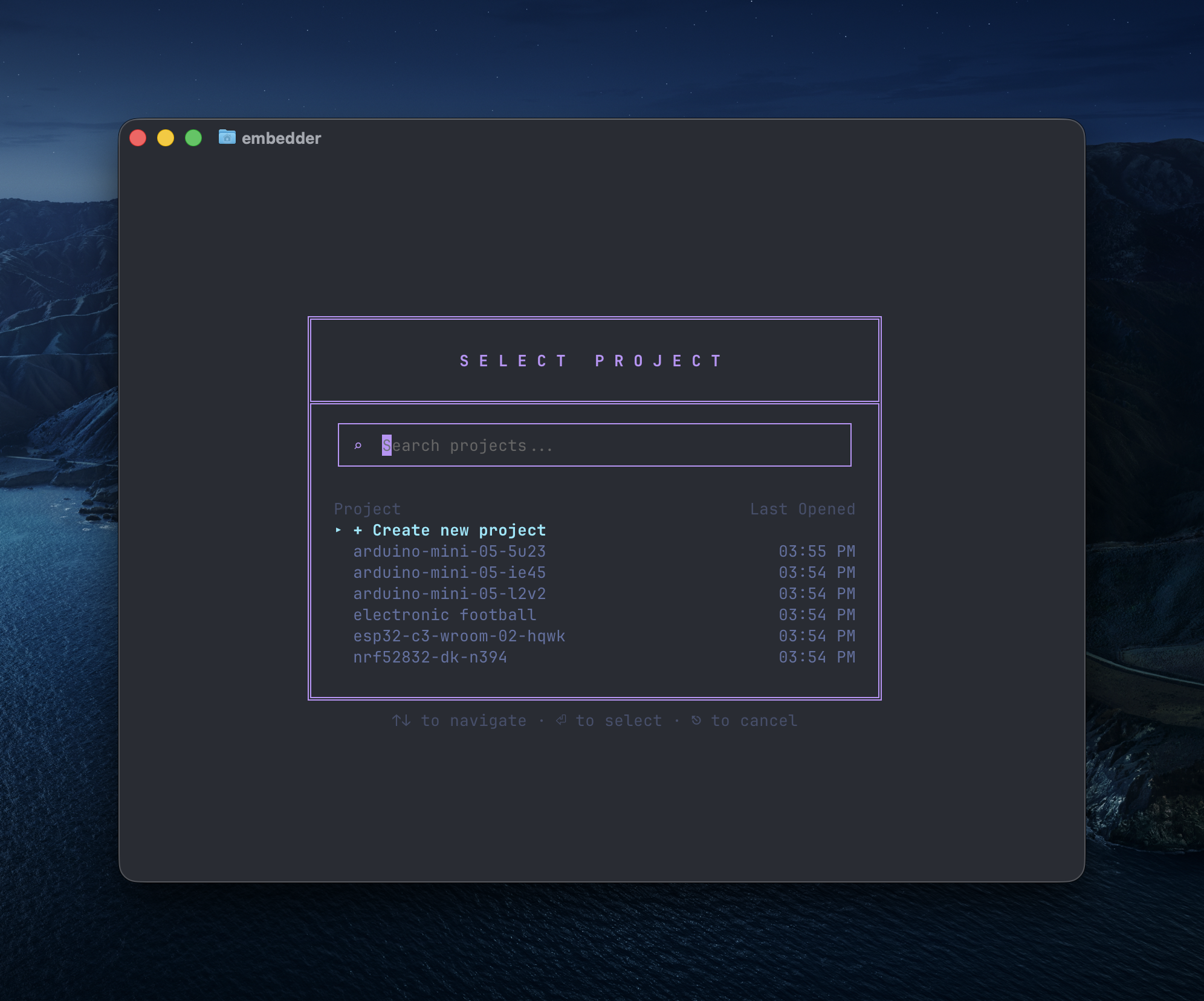
你会看到项目选择界面。
### 创建项目
 ### 选择平台
启动后,Embedder 会让你选择硬件平台。可以用搜索框过滤,方向键选择,`Enter` 确认。
### 选择平台
启动后,Embedder 会让你选择硬件平台。可以用搜索框过滤,方向键选择,`Enter` 确认。
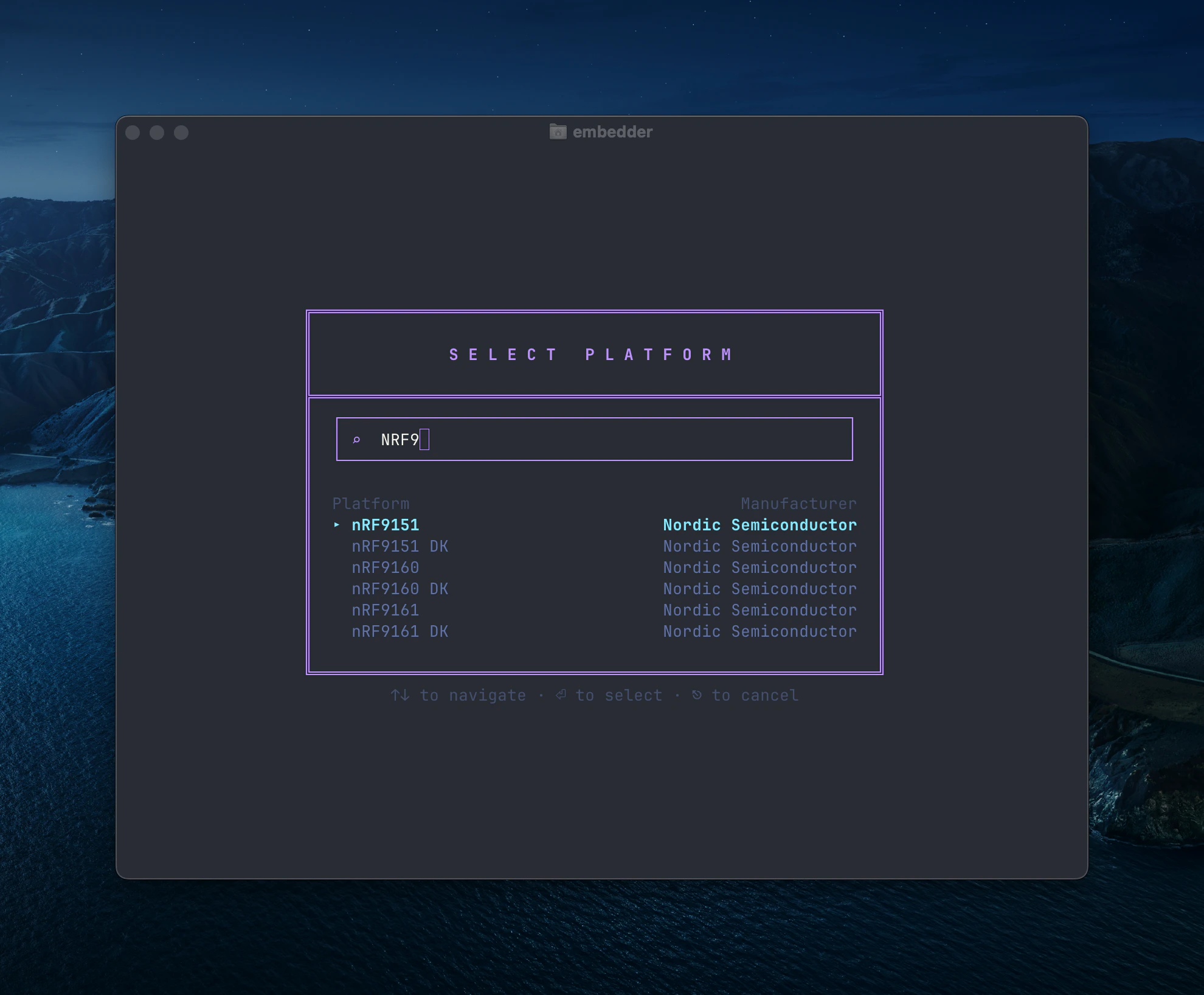 请选择与你硬件匹配的平台。Embedder 会基于平台官方文档进行回答和代码生成。
自定义平台请参考 [常见工作流](/zh-Hans/core-concepts/common-workflows)。
### 选择外设
完成平台选择后,Embedder 会让你配置外设。
请选择与你硬件匹配的平台。Embedder 会基于平台官方文档进行回答和代码生成。
自定义平台请参考 [常见工作流](/zh-Hans/core-concepts/common-workflows)。
### 选择外设
完成平台选择后,Embedder 会让你配置外设。
 搜索目标组件后,使用方向键移动,按空格勾选,`Enter` 完成。
自定义外设请参考 [常见工作流](/zh-Hans/core-concepts/common-workflows)。
你可以稍后用 `/peripherals` 修改外设配置。
## 步骤 4:提出第一条问题
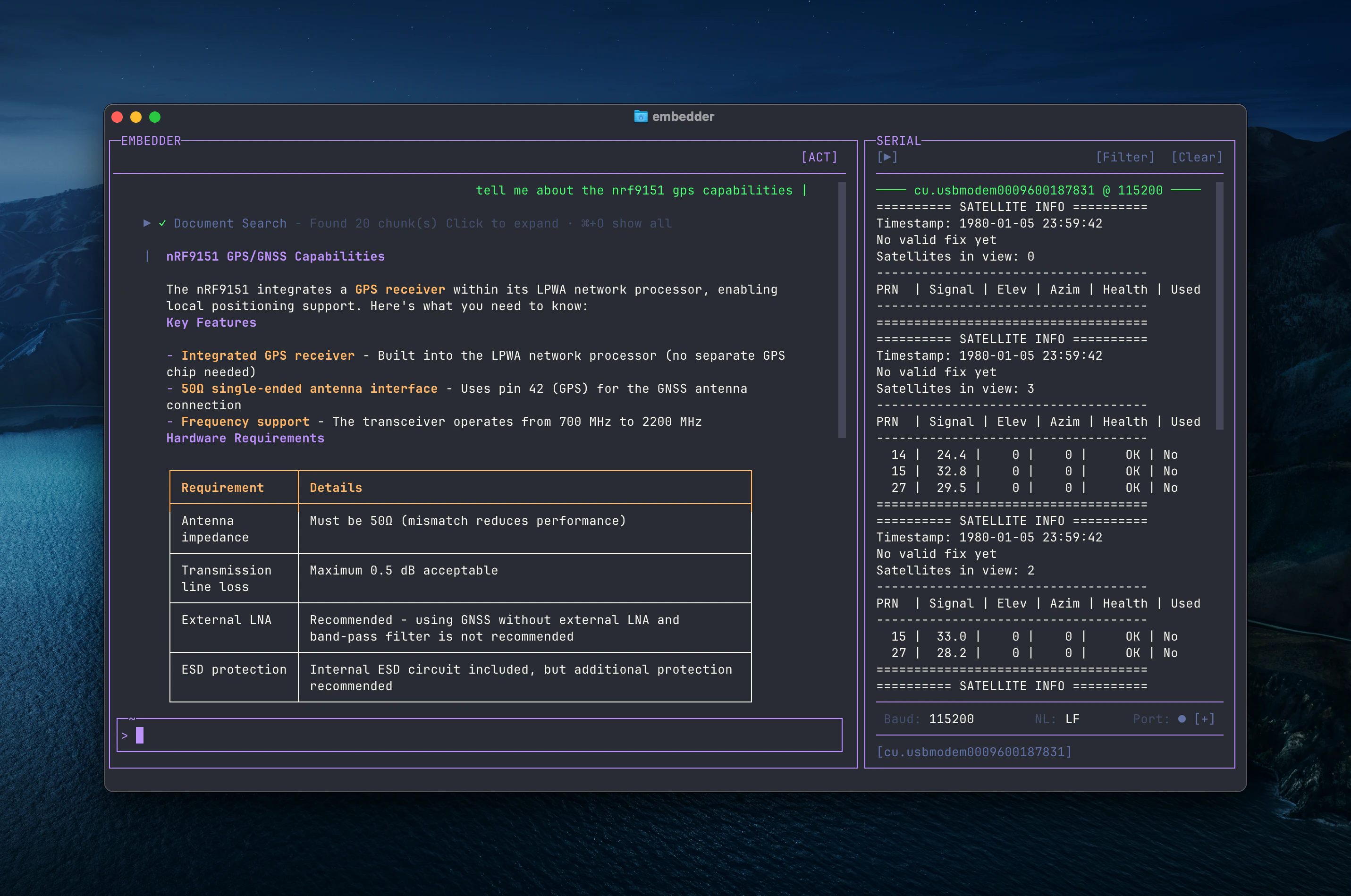
平台和外设配置完成后,你可以直接用自然语言提问。Embedder 会自动参考相关数据手册、参考手册和 errata。若设备已连接,它也会读取实时串口输出。
示例:
```
tell me about the nrf9151 gps capabilities
```
搜索目标组件后,使用方向键移动,按空格勾选,`Enter` 完成。
自定义外设请参考 [常见工作流](/zh-Hans/core-concepts/common-workflows)。
你可以稍后用 `/peripherals` 修改外设配置。
## 步骤 4:提出第一条问题
平台和外设配置完成后,你可以直接用自然语言提问。Embedder 会自动参考相关数据手册、参考手册和 errata。若设备已连接,它也会读取实时串口输出。
示例:
```
tell me about the nrf9151 gps capabilities
```
 你也可以问代码层问题:
```
what does this project do?
```
```
where is the main entry point?
```
```
explain the folder structure
```
Embedder 会按需读取项目文件和数据手册,你不需要手动喂大量上下文。
## 步骤 5:完成第一处代码修改
先试一个简单任务:
```
add a function to toggle the LED on GPIO pin 13
```
Embedder 会:
1. 找到目标文件
2. 读取相关寄存器定义
3. 给出带引用的修改建议
4. 请求你的确认
5. 应用修改
在你授权前,Embedder 默认不会直接改文件(除非你明确允许)。
## 步骤 6:用 Embedder 做 Git 操作
示例:
```
what files have I changed?
```
```
commit my changes with a descriptive message
```
复杂一些的操作也可以:
```
create a new branch called feature/uart-driver
```
```
show me the last 5 commits
```
```
help me resolve merge conflicts
```
## 步骤 7:修 bug 或加功能
你可以直接描述问题:
```
my SPI peripheral isn't responding - help me debug
```
或贴错误:
```
I'm getting a hard fault when I call HAL_UART_Transmit - why?
```
Embedder 通常会:
* 对照数据手册检查代码
* 排查常见配置错误
* 交叉检查 MCU 已知 errata
* 给出并验证修复方案
## 步骤 8:继续探索常见工作流
常见提示词:
**写驱动**
```
write an I2C driver for the BME280 temperature sensor
```
**配置外设**
```
set up PWM on Timer 2 with a 1kHz frequency
```
**生成初始化代码**
```
initialize the ADC for 12-bit resolution on channel 5
```
**迁移平台**
```
help me port this STM32 driver to nRF52
```
更多示例见 [常见工作流](/zh-Hans/core-concepts/common-workflows)。
把 Embedder 当成“熟悉你硬件的资深固件工程师”来提问,效果通常更好。
## 接下来做什么
继续阅读 [最佳实践](/zh-Hans/core-concepts/best-practices) 或 [常见工作流](/zh-Hans/core-concepts/common-workflows)。
## 获取帮助
* **在 Embedder 内**:输入 `/help`
* **文档**:浏览各主题页面
* **社区**:加入 Discord 获取支持
你也可以问代码层问题:
```
what does this project do?
```
```
where is the main entry point?
```
```
explain the folder structure
```
Embedder 会按需读取项目文件和数据手册,你不需要手动喂大量上下文。
## 步骤 5:完成第一处代码修改
先试一个简单任务:
```
add a function to toggle the LED on GPIO pin 13
```
Embedder 会:
1. 找到目标文件
2. 读取相关寄存器定义
3. 给出带引用的修改建议
4. 请求你的确认
5. 应用修改
在你授权前,Embedder 默认不会直接改文件(除非你明确允许)。
## 步骤 6:用 Embedder 做 Git 操作
示例:
```
what files have I changed?
```
```
commit my changes with a descriptive message
```
复杂一些的操作也可以:
```
create a new branch called feature/uart-driver
```
```
show me the last 5 commits
```
```
help me resolve merge conflicts
```
## 步骤 7:修 bug 或加功能
你可以直接描述问题:
```
my SPI peripheral isn't responding - help me debug
```
或贴错误:
```
I'm getting a hard fault when I call HAL_UART_Transmit - why?
```
Embedder 通常会:
* 对照数据手册检查代码
* 排查常见配置错误
* 交叉检查 MCU 已知 errata
* 给出并验证修复方案
## 步骤 8:继续探索常见工作流
常见提示词:
**写驱动**
```
write an I2C driver for the BME280 temperature sensor
```
**配置外设**
```
set up PWM on Timer 2 with a 1kHz frequency
```
**生成初始化代码**
```
initialize the ADC for 12-bit resolution on channel 5
```
**迁移平台**
```
help me port this STM32 driver to nRF52
```
更多示例见 [常见工作流](/zh-Hans/core-concepts/common-workflows)。
把 Embedder 当成“熟悉你硬件的资深固件工程师”来提问,效果通常更好。
## 接下来做什么
继续阅读 [最佳实践](/zh-Hans/core-concepts/best-practices) 或 [常见工作流](/zh-Hans/core-concepts/common-workflows)。
## 获取帮助
* **在 Embedder 内**:输入 `/help`
* **文档**:浏览各主题页面
* **社区**:加入 Discord 获取支持